How to Create QR Codes for WhatsApp Business Chat
Why WhatsApp QR Codes Matter for Growth
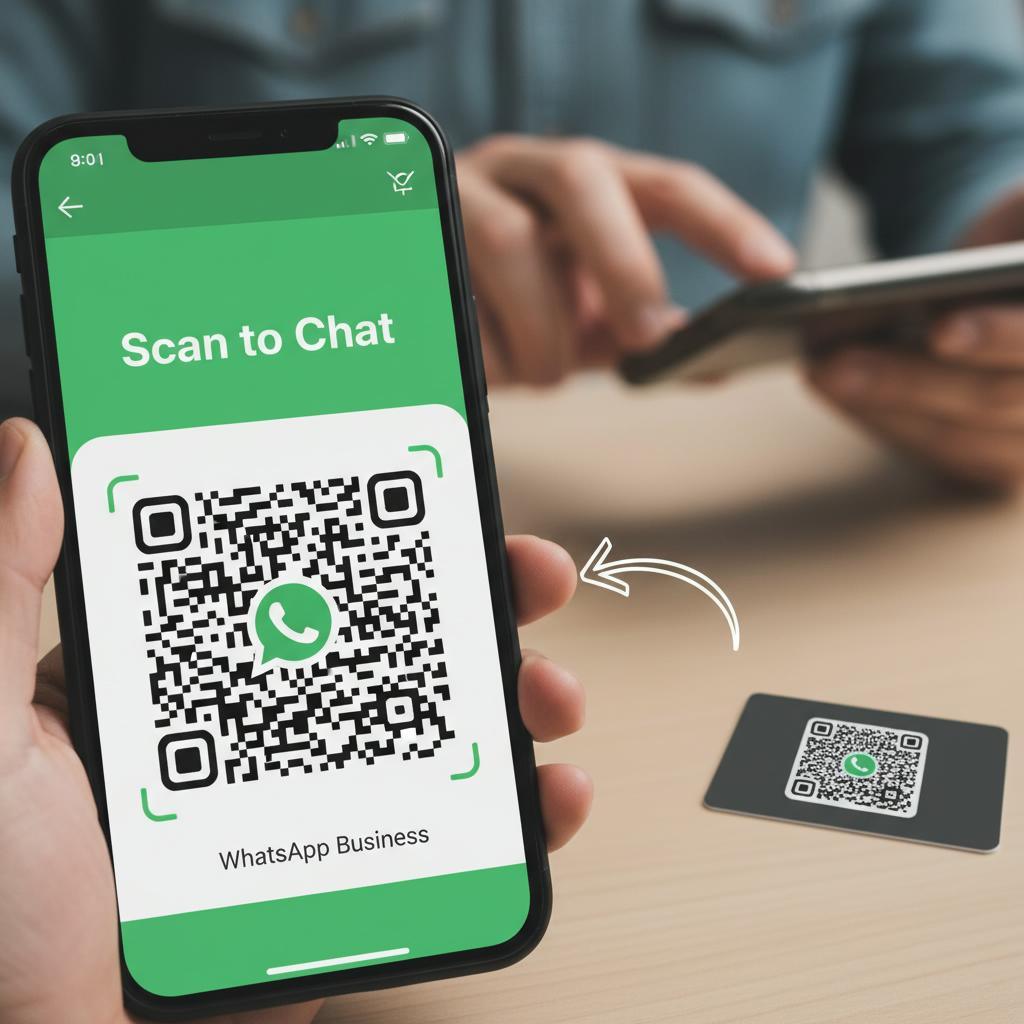
QR codes for WhatsApp Business turn real-world moments into instant conversations. As QR codes in business proliferate, they provide a low-friction entry point within modern marketing strategies. In this guide, you’ll learn why they work, how to create them in the WhatsApp Business app and via the WhatsApp Business Platform API, and how to deploy them for measurable impact. For teams driving digital transformation tools across sales, support, and loyalty, WhatsApp QR codes open a direct, personal channel to customers that feels natural, fast, and secure.
Instant entry into chat
Every extra tap costs conversions. Scanning a QR code that launches WhatsApp Chat removes form fills, clunky phone trees, and email lag. It’s mobile-native, privacy-conscious, and familiar to consumers. From packaging to point-of-sale, posters to product manuals, QR codes shorten the path to help, quotes, bookings, and reorders—boosting response rates and lowering acquisition costs compared with legacy touchpoints.
Frictionless opt-ins and attribution
WhatsApp QR codes can carry a pre-filled message that signals intent (for example, “I’d like a size exchange”). Combined with short links and campaign parameters, they enable clean attribution by source, location, and creative. In the app, the WhatsApp Business short link and QR code feature makes it easy to generate and share entry points while maintaining customer consent and auditability.
How to Create a WhatsApp Business QR Code
Create from the WhatsApp Business app
Open WhatsApp Business on Android or iOS and go to Settings > Business tools > Short link > QR code. Set (or update) the default message customers will send when they scan, then share, download, or print the code for campaigns and signage. For supported details and variations, consult the official WhatsApp FAQ on Business QR codes, which outlines how codes work, privacy considerations, and how customers can scan them.
Create dynamic QR codes via the WhatsApp Business Platform
For larger teams, generate dynamic, trackable QR codes with the WhatsApp Business Platform. Use API endpoints to create campaign- or store-specific codes, attach pre-filled messages, and route chats to specialized inboxes. This approach supports CRM/CDP enrichment, automation, and A/B testing at scale. See the Meta developer guide to QR codes for the WhatsApp Business Platform for parameters, examples, and governance best practices.
Best practices for deployment and tracking
Design for visibility: include a clear call-to-action (“Scan to chat now”), adequate size (at least 2.5 cm on print), high contrast, and safe margins. Test across devices and lighting conditions. Use campaign tags on short links for analytics, rotate codes by season or offer, and map each code to distinct inbox labels for smooth triage. Align staffing and response SLAs so the speed of chat matches the speed of scan.
Use Cases and ROI
Retail and physical locations
Place codes on storefront windows, shelf talkers, fitting rooms, and receipts to offer real-time assistance, back-in-stock alerts, and loyalty enrollment. Packaging inserts can promote care tips or cross-sells via chat. The result: shorter queues, fewer phone calls, and higher average order value as associates handle more concurrent conversations without sacrificing quality.
Service businesses and support
Salons, clinics, and home services can add QR codes to appointment cards, vehicles, and invoices for bookings, estimates, and follow-ups. Tech and appliance brands can print support QR codes on manuals for faster troubleshooting. Start simple with the app-generated code, then graduate to dynamic, campaign-level codes as volume grows. Used thoughtfully, WhatsApp QR codes are practical digital transformation tools that convert attention into conversations—fueling modern marketing strategies built on speed, personalization, and measurable outcomes.